
Change Your Tradovate Demo Account Balance
Ran your practice account down to nothing, or want a clean round number to start from? Changing your Tradovate demo balance takes about thirty seconds once you know where the button lives.
On This Page
Ran your practice account down to nothing? Want a clean round number to start from? Or maybe you're sizing a strategy to match a funded target before you risk real capital. Whatever the reason, changing your Tradovate demo balance takes about thirty seconds once you know where the button lives. Here's exactly how to do it.
What Is the Demo Account Balance?
Your Tradovate demo (or "SIM") balance is the virtual cash and equity sitting in your simulated practice account. It's the money you trade with while you're learning the platform, testing an idea, or paper-trading a prop-firm-style size. Since none of it is real, Tradovate lets you set that number yourself. You can add funds after a rough session, wipe out a drawdown, or dial in a specific starting figure.
Just to be clear: this is not the same thing as starting or resetting the free demo trial. Here you're only changing the balance. The trial window itself stays put.
Change Your Demo Balance in Tradovate: Step-by-Step
Open Application Settings
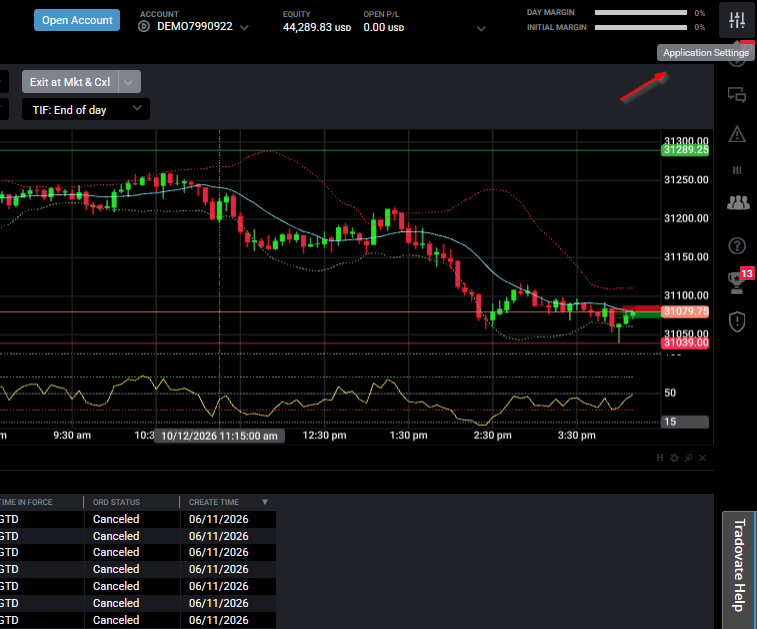
Log in to the Tradovate web platform and click the Application Settings button in the upper-right corner of the screen. Make the change from the web app and it syncs everywhere else on its own.
Open the Accounts Tab and Find Your Demo Account
Inside Application Settings, click the Accounts tab. Find your Demo / SIM account in the list. That's the simulated account tied to your practice session.
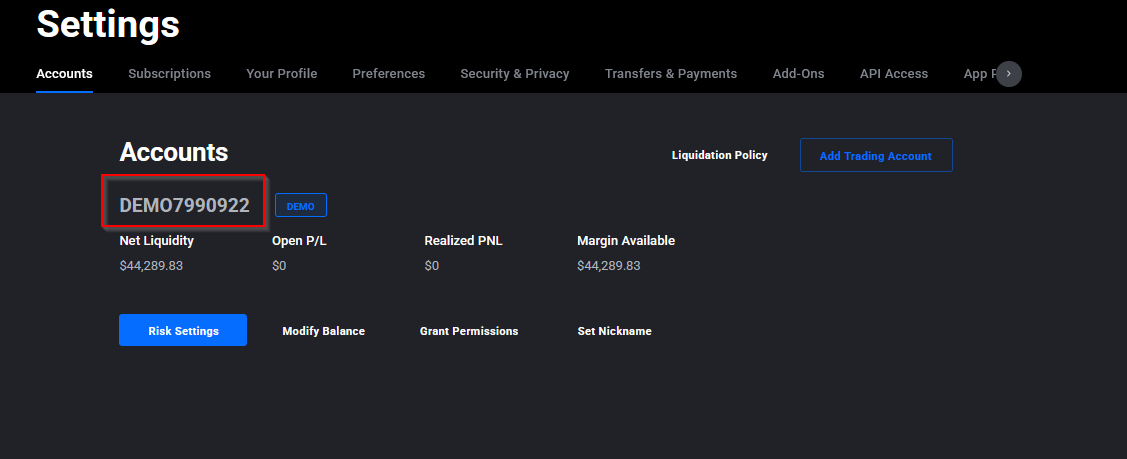
One limit worth knowing: Tradovate caps demo balances at $50,000 unless your live account holds that much or more. That ceiling can change, so if you're counting on a higher number, confirm the current rule in Tradovate's help center first.
Why You'd Need This
- Restart after a drawdown, reset your SIM equity to a fresh starting figure and keep practicing.
- Mirror a funded-account size, set the balance to match a prop-firm evaluation or a target account you plan to trade.
- Stress-test position sizing, push the balance up or down to see how your risk math holds up at different account sizes.
- Clean up a messy practice run, clear out inflated or negative simulated equity so your reports actually read straight.
Automate This with PickMyTrade
Once your practice account is set up the way you want, PickMyTrade wires your TradingView alerts straight into Tradovate so your strategy fires on its own, no manual clicks, on demo or live. Run the exact same automation on your SIM account first, then flip it over to your funded account once you trust it.
Automate Your Tradovate Trades
Run the same automation on your SIM account first, then flip it to live once you trust it. PickMyTrade wires your TradingView alerts straight into Tradovate.
Start Your Free 7-Day TrialFrequently Asked Questions
Usually not. Tradovate limits demo balances to $50,000 or less unless your live account holds that amount or more. A rule like this can change, so check Tradovate's current help-center guidance if you need a higher figure.
Yes. Balance changes you make in the web app's Application Settings sync across all Tradovate platforms, Web, Desktop, and Mobile.
No. You can change the balance anytime, but the free simulated trial itself runs for a limited window and can't be extended once it expires.
This guide is for educational and informational purposes only and is not financial, investment, or trading advice. Trading futures and other leveraged products carries a substantial risk of loss and is not suitable for every investor. PickMyTrade is an independent third-party automation platform and is not affiliated with, endorsed by, or sponsored by Tradovate, Inc. "Tradovate" and all related names, logos, and trademarks are the property of their respective owners. Platform features and steps change over time, so always confirm the current process in the official Tradovate platform and documentation before acting.